
Storing Uploaded Files and Serving Them in Express
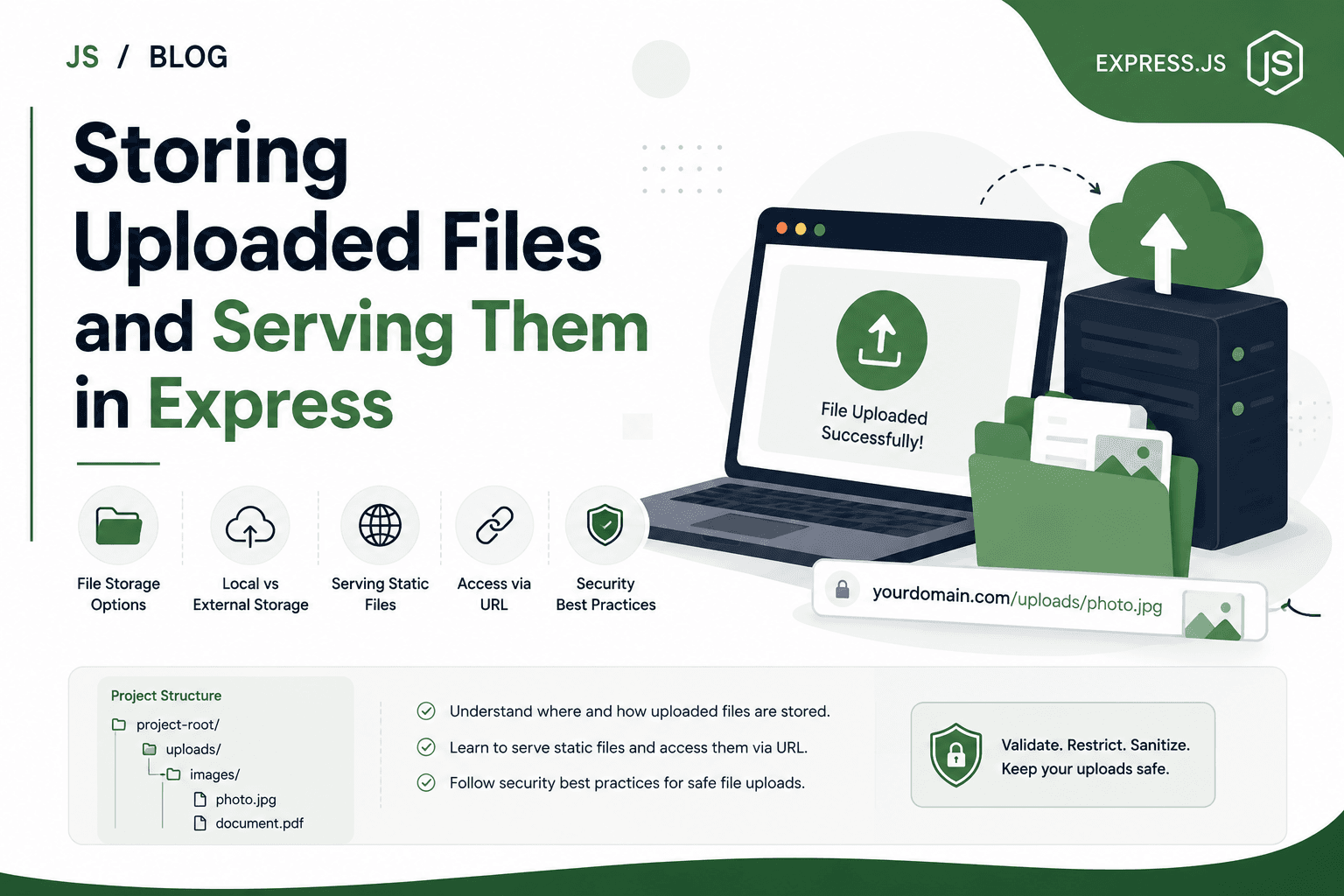
Storing Uploaded Files and Serving Them in Express
Handling uploaded files—like profile pictures, reports, or documents—is a common web development task. In Node.js with Express, you must decide where to store these files, how to serve them, and how to keep things safe and reliable for users.
Let’s dive deeper into local and external storage, static file handling, generating public URLs, plus security best practices for real-world Express apps.
Where Are Uploaded Files Stored?
Whenever a user sends a file through a web form or an API endpoint, your server code (not the browser!) must save the file on disk or in the cloud.
You have two main options:
1. Local Server Storage
Files are written to your own server’s filesystem:
Project structure:
/myapp
  /uploads           <-- your saved files
  /public
  app.js
  ...
Common in prototypes, small apps, and on a single server.
How it works:
When the server receives a file upload, it saves the file to a designated folder like
/uploads.You usually use middleware like multer to parse and move the files.
2. External or Cloud Storage
Files are uploaded to an external service:
Amazon S3
Google Cloud Storage
Azure Blob Storage
External file hosting such as Cloudinary
How it works:
Your Express app uploads files to the cloud via API.
You store only the URL pointing to the file.
Why use external storage?
Scalability: Easily handles spikes in uploads and downloads, no matter how many servers are running.
Reliability: Survives server crashes/restarts and works across multiple app instances.
Global delivery: External storage often comes with a CDN (delivers files fast, close to users worldwide).
Local Storage: How to Handle Folder-Based Uploads
For local storage in Express:
Choose a dedicated folder
E.g.,uploads/at your project root. Do not mix with source code.Save uploaded files here
Use a library like multer, which:Parses
multipart/form-datarequestsSupports renaming and controlling destination
const express = require('express');
const multer = require('multer');

const app = express();
const upload = multer({ dest: 'uploads/' });

app.post('/upload', upload.single('file'), (req, res) => {
  // req.file contains info about the file (filename, path, etc)
  res.json({
    fileUrl: `/uploads/${req.file.filename}`,
    originalName: req.file.originalname
  });
});
What’s inside uploads/ after an upload?
Files with auto-generated names:
1689991234567-avatar.jpgYou can organize further (
/uploads/userid/avatar.jpg) for better structure if needed.
Serving Static Files in Express
After storing a file, you want users to view or download it directly through the browser.
Express makes this easy:
app.use('/uploads', express.static('uploads'));
Now any file inside uploads/ is accessible at:
http://your-domain.com/uploads/filename.jpg
How it works:
express.static() exposes a folder as public-facing.
When a request comes in for
/uploads/filename.jpg, Express looks foruploads/filename.jpgon disk and, if found, serves it automatically.
External Storage: Architecture and Usage
For professional or large-scale apps, local storage is limited:
Local files disappear if you redeploy, lose your disk, or use multiple servers without syncing files.
External storage (cloud) handles these problems.
Typical cloud upload flow:
User uploads a file via your front end.
Your server receives and forwards the file to the cloud (using node modules for AWS, Google, etc).
The service returns a public/private URL.
Your server stores this URL in the database.
Your app or user accesses the file from this hosted URL—not your server.
Benefits:
No worries about disk space or lost files after server upgrades.
Handles huge numbers of concurrent uploads and downloads.
Often includes image resizing, CDN delivery etc.
How Uploaded Files Become Accessible
After uploading and storing the file:
Save a reference:
You usually store the file’s name, relative path, or cloud URL in your own database along with the related user or resource.Return the URL:
When your API sends info to the front end, include the accessible link.With local storage:
/uploads/filename123.jpgWith external storage:
https://your-bucket.s3.amazonaws.com/filename123.jpg
Frontend uses the URL:
Shows it in an<img src="...">, download link, etc.
Security Considerations for Uploads
File uploads are a major vector for attacks. Follow these practices:
Whitelist allowed file types: Use multer’s
fileFilterto allow only images, PDFs, etc.Restrict file sizes: Prevent server overloads with
limits: { fileSize: ... }in multer.Sanitize file names: Never use original file names directly; always generate unique names (e.g. timestamp, UUID) to prevent overwriting.
Separate upload directory: Do not serve uploaded files from the same directory as your app’s source code.
Set permissions: Make sure uploaded files can’t be executed as code by the server.
Protect sensitive uploads: For private files, avoid serving them via
express.static; instead check user permissions before sending the file (with res.download or res.sendFile).Validate file contents (advanced): Use libraries or tools to scan for malware or check that the file “magic bytes” match its extension.
HTTPS: Always serve/upload files over HTTPS to avoid man-in-the-middle attacks.
Real Example: Complete Minimal Flow
const express = require('express');
const multer = require('multer');
const app = express();

const upload = multer({ dest: 'uploads/' });

app.use('/uploads', express.static('uploads'));

// File Upload Route
app.post('/upload', upload.single('myfile'), (req, res) => {
  // Store the file reference in your DB if needed
  res.json({ fileUrl: `/uploads/${req.file.filename}` });
});

// Example: Client can now access the file at /uploads/<filename>
User POSTs file to
/upload, receives file URL in JSON.Browser or app can GET
/uploads/<filename>to view or download the file.
Good File Storage Structure
For organization and easier management as your app grows, consider:
uploads/
   users/
     234/
       avatar.jpg
   posts/
     4567/
       image.png
   tmp/
Advantages:
Easier cleanup for specific users
Prevents filename collisions
Summary
Store uploads locally in a dedicated directory for simple projects or development; use external storage (like AWS S3) in production for reliability and scale.
Use Express’s built-in static middleware to serve uploaded files to users, but keep uploads in a separate, non-public source directory.
Always validate file types, set limits, and generate unique file names to avoid overwriting and security risks.
After saving, provide a URL to the client, so frontends can access/download the file via a standard HTTP link.
For sensitive/private files, serve them only after authentication/authorization rather than as static assets.
Careful planning and safe file handling keep your users’ data and your server secure, efficient, and scalable.