
Inside Git and how it works!
Introduction
In last two blogs we talked about Version Control in general and got introduction to Git and learned what is importance of version controlling and why we choose Git specifically to handle source control or source tracking of our projects. In Git introduction blog we learned about basic Git terminologies and basic Git commands. The first term we got introduced to was “repository” where we learned Git repository is the project directory that is being maintained by Git which is not entirely correct.
Actually, the repository is just the .git folder inside our project directory. There is a clear distinction between working directory where we store our actual files and work on them with the actual repository or the “.git“ folder where Git maintains all the tracking information, commit history and much more. Today we will dive inside the .git folder and discover how Git stores all the information and how it works internally.

Behind the simple commands
Starting with some basic concepts that you should have clear is Git is not a VCS system at core, yes you read that correct. At core Git is a content-addressable filesystem. That means Git underneath the VCS interface is just a Key-Value storing system that stores all of the information as blobs or objects and provides keys to access them. These keys are SHA-1 hash keys.
Git always did not provide these simple VCS interface over this key-object management workflow.. It was a more complex and tedious process. To really understand we need to see what goes on when we enter our simple looking Git commands.
Git provides two different set of commands that work at two different layers of Git.. one is called Porcelain the ones that we are used to using on day to day basis and another set that exists at a deeper level are called Plumbing. You can compare it to using water sink that is usually made of Porcelain and straightforward to use where the actual water management is done by Plumbing mechanism hidden behind. (Yes Linus Torvalds is a genius!).
Let’s look at few step by step simple plumbing command to understand how Git really works underneath the simple VCS interface.
Git Objects and usage
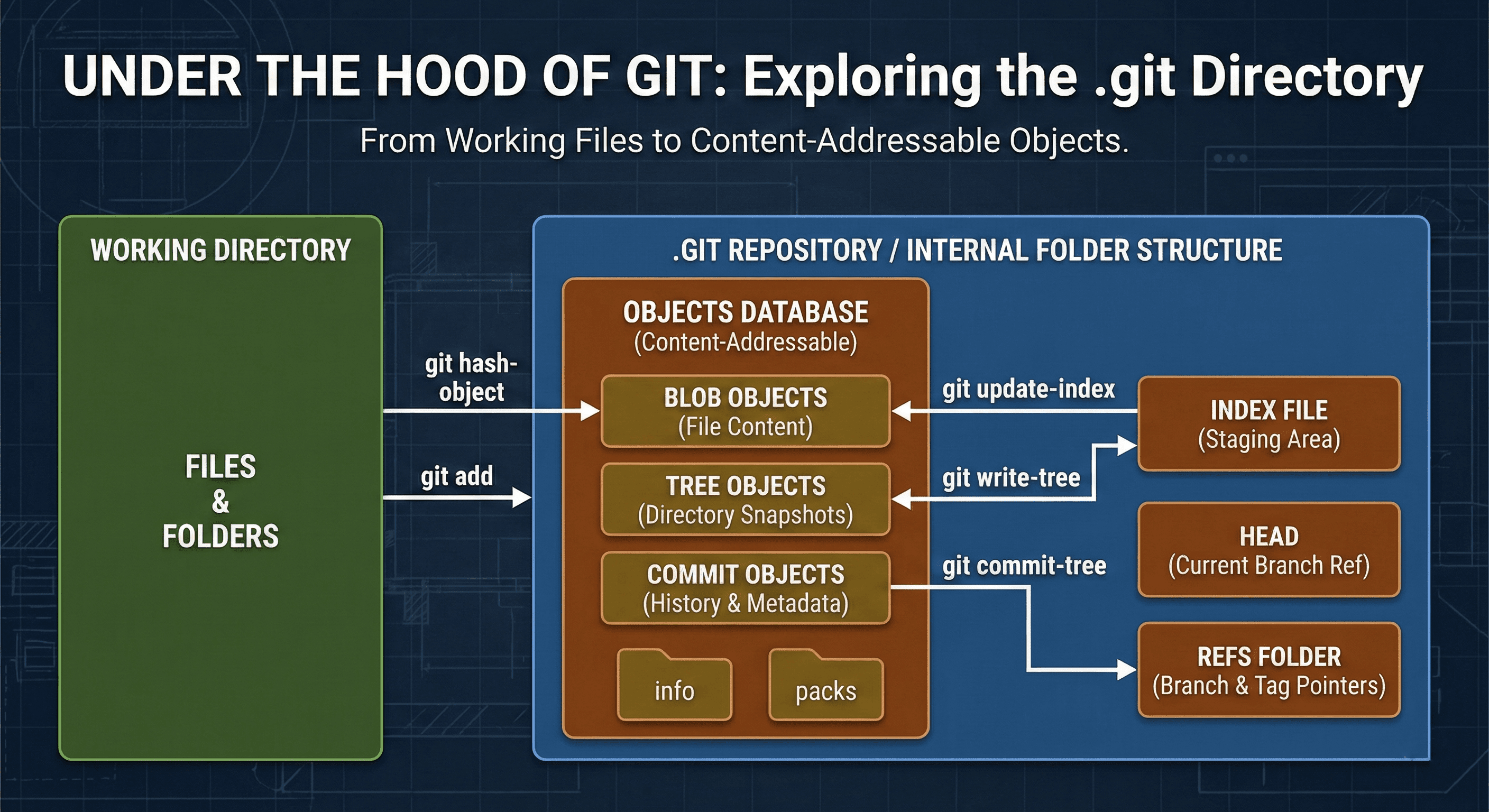
Everything related to tracking information that Git stores in .git folder is an object inside .git/objects folder. Let’s see how to manually store a file in Git Objects database.
git hash-object -w README.md
In this command Git reads the contents of the file README.md and creates a blob object for that file from the content along with it’s metadata. It also calculates the hash from the blob file content and returns it as a key. The -w flag tells Git to also store the blob object in the database.
This command stores the blob object under the .object folder under subfolder for e.g. if the hash is something like 67bf245a3cd… then it will be stored as .git/object/67/bf245a3cd…..
Next thing we need to do is update the index file that lives inside .git folder in path .git/index. The blobs are not much useful by themselves , we need to store exact what file the blob is associated to along with few more metadata to actually make it useful and ready for commit.
git update-index --add README.md
With this command we add the blob file’s information in the index file. This commands updates the index file and writes the blob hash 67bf245a3cd…, associated file path README.md and filemode or permissions.
Did you realise what we did? We essentially added README.md file to staging area that is usually done simply by git add README.md command. Yes when we say adding files to staging area we mean adding these details to the .git/index file.
This is where we understand importance of Index file or staging area. Index is meant to be as a stage for tree objects to be formed upon so that the current filesystem snapshot (the blobs hash , filenames and directory hierarchy) can be stored as a hierarchical structure in the version history.
Tree objects are another type of object that consume information from index file and stores the blob info and their metadata along with sub-trees in case there are sub-directories under the root project directories and in those sub-trees blobs associated with those sub-directory files are stored.
These tree objects are created with
git write-tree
command. This command also returns a hash calculated from the tree object it forms and returns as key for the newly created tree object.
Now this tree is a exact snapshot of your staged filesystem present in Index file.
To commit this tree permanently to you repository’s tracking history you use
git commit-tree <tree_hash> -m "Add README"
command. This creates a new commit and returns a hash for this commit that you just made. If your repository has existing commit to maintain a proper commit history that you usually see from a git log you need to use -p flag and pass previous commit hash.
git commit-tree <tree_hash> -m "Add README" -p <previous commit hash>
And with that you have essentially done git commit -m “Add README“. Each commit object contains
1. Hash of the tree object
2. Parent Commit hash
3. Author
4. Comitter
and the Commit message that you provided.
For each object be it blob, tree or commit object there exists a Hash that is actually calculated from exact contents of those objects and acts as a key to them.
Summary
Yes, All of this happen under the hood every single time you complete a git add and git commit -m “msg“ loop using the VCS frontend commands or the Porcelain commands. Now not only you know actual low level Git commands do when you run the higher level simpler commands but also what exactly goes on inside the repository and how they are saved inside your .git folder and sub-folders.