

JavaScript Modules: Import and Export Explained
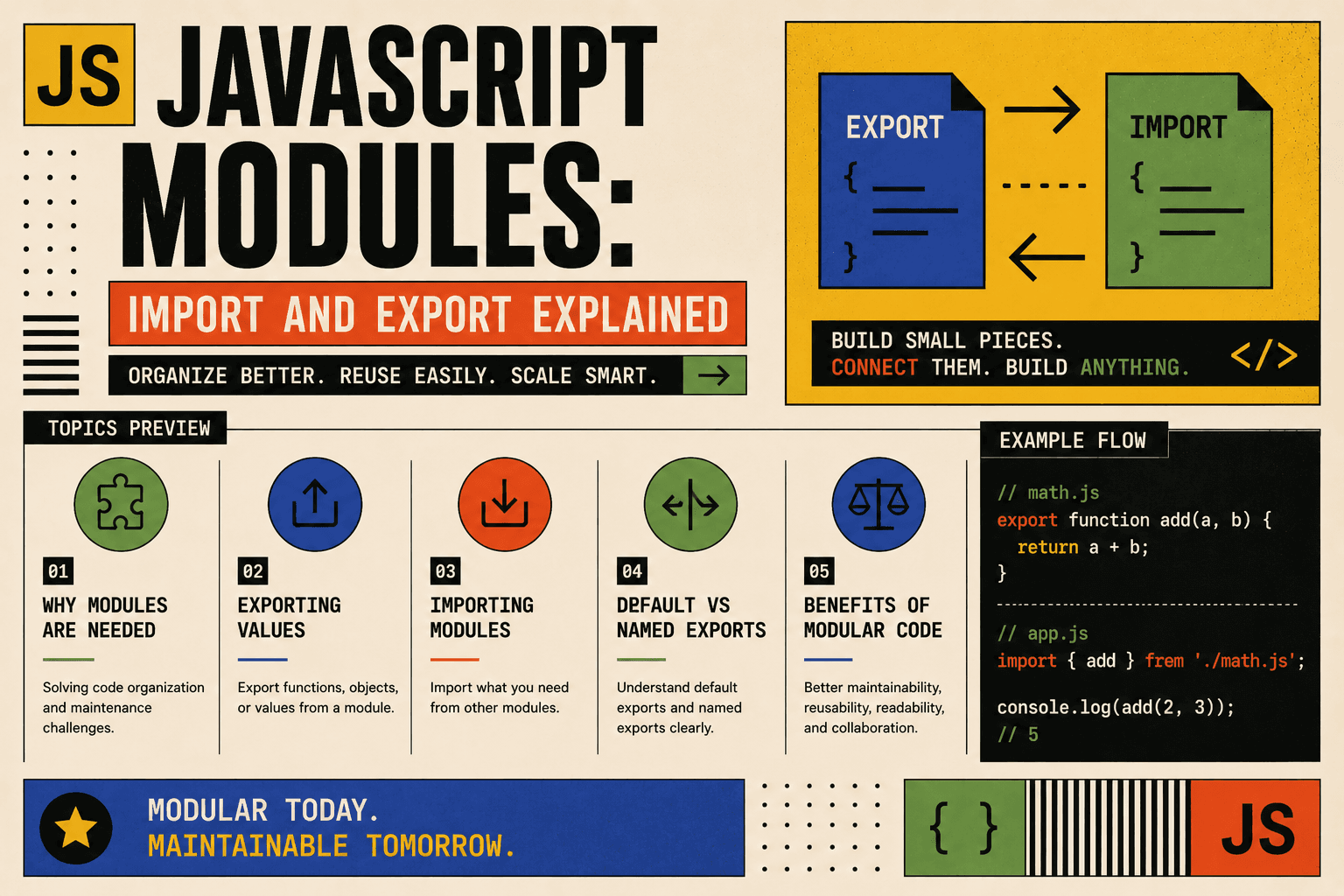
Why Modules Are Needed
When building applications, code grows larger over time. Keeping all JavaScript code in a single file makes it:
Difficult to navigate and read
Harder to debug and maintain
Prone to variable name conflicts, where different sections inadvertently overwrite each other's data
Modules solve these problems by allowing you to split your code into separate, distinct files. Each file becomes a module containing specific logic. This creates boundaries between different parts of an application and prevents global scope pollution.
Benefits of Modular Code
Organizing code into modules provides several practical advantages for software development.
Better Organization: You can group related logic together, such as keeping all mathematical functions in one file and user authentication functions in another.
High Reusability: A module can be written once and imported into multiple parts of an application without duplicating code.
Independent Maintenance: Developers can update or fix bugs inside a single module without worrying about affecting unrelated parts of the codebase.
Clear Dependencies: By looking at the imports at the top of a file, you can immediately tell what other files this code relies on.
Named Exports
Named exports allow you to share multiple values, functions, or classes from a single file. When using named exports, the name of the exported item must match the name used during the import process.
Exporting Named Items
To export items, you place the export keyword directly before the variable or function declaration.
File: mathUtils.js
export const add = (a, b) => a + b;

export const subtract = (a, b) => a - b;

export const PI = 3.14159;
Importing Named Items
To import named items, you specify the exact names inside curly braces {}.
File: main.js
import { add, subtract, PI } from './mathUtils.js';

console.log(add(5, 3));
console.log(subtract(10, 4));
console.log(PI);
Default Exports
Default exports are used when a module is responsible for sharing a single main value, function, or class. Each file can have only one default export.
Exporting a Default Item
To create a default export, you use the export default keywords.
File: UserService.js
const UserService = {
  getUser: (id) => {
    return { id: id, name: "Alice" };
  },
  logout: () => {
    console.log("User logged out");
  }
};

export default UserService;
Importing a Default Item
When importing a default export, you do not use curly braces. You can also name the imported item whatever you like.
File: app.js
import UserService from './UserService.js';

const user = UserService.getUser(1);
console.log(user.name);
Because it is a default export, you could also write import UserTool from './UserService.js' and it would work the same way.
Combining Named and Default Exports
A single module can contain both a default export and multiple named exports. This is helpful when a file has one primary component but also offers secondary utility values.
Exporting Both
File: formatters.js
// Default export
const mainFormatter = (text) => text.trim();
export default mainFormatter;

// Named exports
export const uppercase = (text) => text.toUpperCase();
export const lowercase = (text) => text.toLowerCase();
Importing Both
You can import both types simultaneously by placing the default name first, followed by the named items inside curly braces.
File: script.js
import mainFormatter, { uppercase, lowercase } from './formatters.js';

const rawText = "   Hello World   ";
const cleanText = mainFormatter(rawText);

console.log(cleanText);
console.log(uppercase(cleanText));
Quick Comparison: Named vs Default Exports
| Feature | Named Export | Default Export |
|---|---|---|
| Quantity per file | Multiple allowed | Only one allowed |
| Import Syntax | Requires curly braces {} |
No curly braces |
| Import Naming | Must match exact exported name | Can be renamed freely |
| Export Keyword | export const myVar |
export default myVar |
How Modules Improve Maintainability
To see how modules help, imagine a simple application without modules where all code sits in one long document. If a mathematical calculation breaks, you must search through hundreds of lines of UI code and data fetching logic to locate the error.
With modules, the application structure becomes clean and predictable:
project/
│
├── mathUtils.js   (Handles calculations only)
├── formatters.js  (Handles text formatting only)
└── main.js        (Coordinates the overall application flow)
If a text formatting bug occurs, you know exactly which file to open. The rest of the application remains untouched and isolated from changes, reducing the risk of accidental bugs.
Conclusion
JavaScript modules provide a clean architecture for modern applications. By breaking code into isolated files and using import and export statements, you ensure that your code remains organized, testable, and reusable.
Use named exports when your file contains multiple independent utilities.
Use default exports when your file represents a single standalone class, function, or service configuration.
Avoid global variable pollution by keeping file logic encapsulated inside its own module boundary.